When collaborating on documents, understanding how to use track changes in Microsoft Word is key. Still, users often make common track changes mistakes that mess up the editing. This article will point out these issues and give advice on how to avoid them, promoting smooth teamwork and clear messages with your group. From accepting and rejecting changes to fixing everyday issues, we cover what you must know to master the track changes feature. By the end of this post, you will have insights and techniques that enhance editing skills plus save time and stress on your work. Whether new or experienced, this guide gives you the knowledge needed to use track changes correctly. So you can keep focus on what really matter-creating fine content.
Understanding Track Changes in Microsoft Word
The Track Changes in Microsoft Word helps users work together. It allows people to add comments, suggestions, and revisions without removing original content. When its enabled, users edits will be shown in highlights. This system marks what been added, deleted or changed. This makes the review easier, letting authors keep control while still get feedback.
Comparing Track Changes in Microsoft Word and its features in other tools like Google Docs shows differences. Both allow collaboration, but Word’s Track Changes give better formatting and commenting options. Google Docs emphasize real-time collaboration but limits formatting while editing. This can really change user experience and affect how edits gets approved.
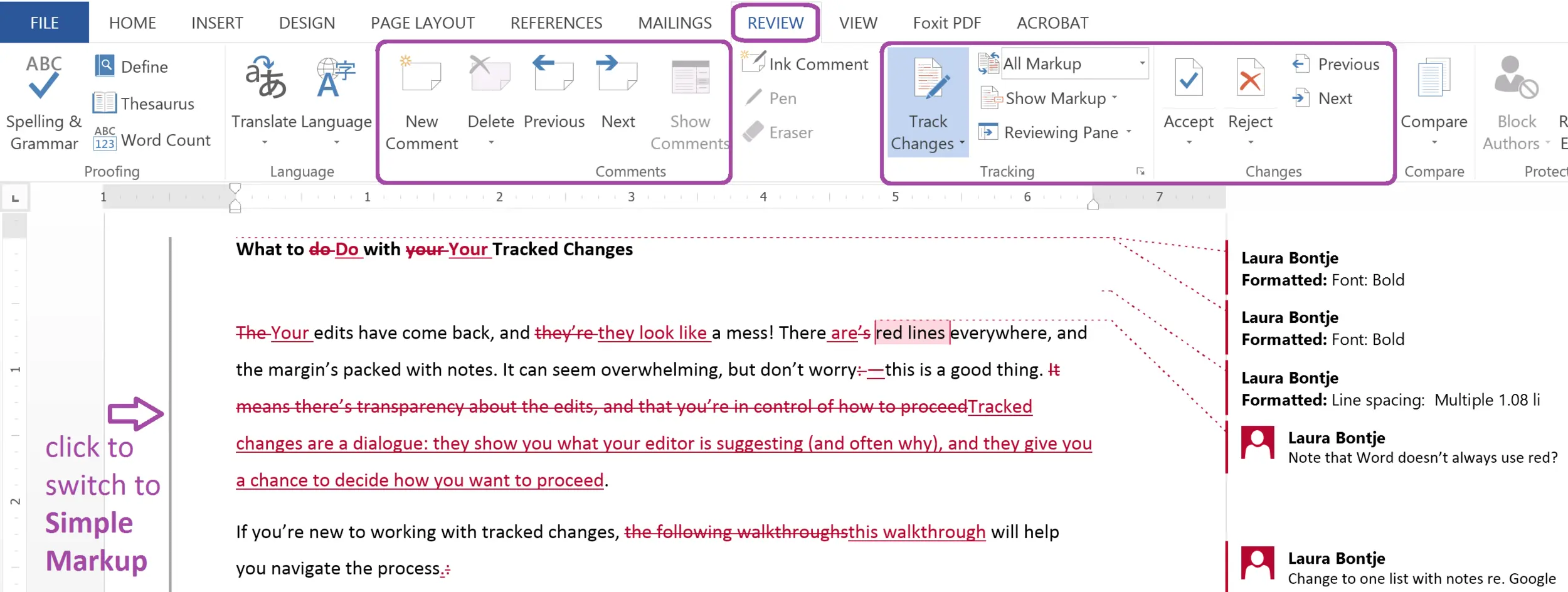
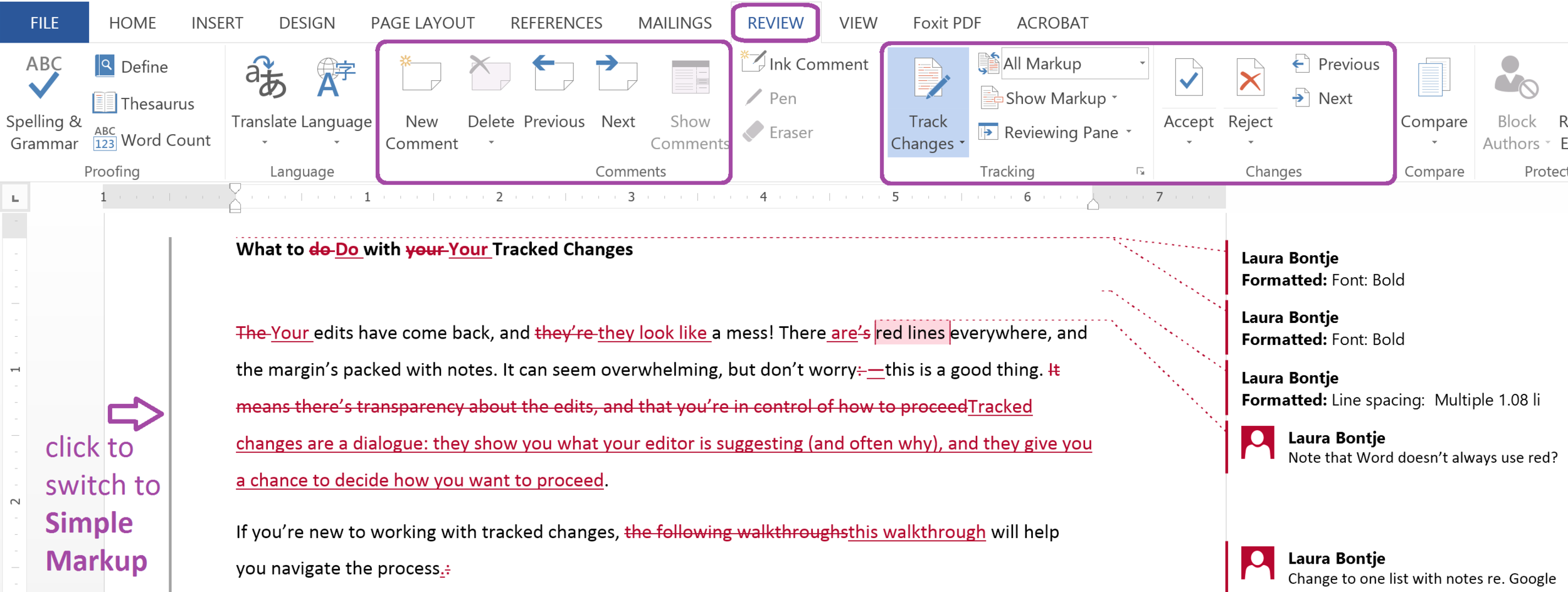
Using Track Changes in Microsoft Word is simple. Go to the Review tab on the Ribbon to find this function. By selecting the ‘Track Changes’ option, edits will be tracked in the document. These changes can be seen in the margins or inline according to user preferences. Learning to navigate these edits and comment bubbles helps manage suggestions from others. Mastering how to accept or reject these edits is also vital for finished styles.
This understanding help spot mistakes that come with using Track Changes. Knowing the common issues users face with this feature promotes a smoother editing journey and creates a polished document.
Common Pitfalls When Using Track Changes
Track Changes is a useful tool for editing and collaborating on documents. However, users often face common pitfalls. Knowing these problems may help you avoid mistakes that can affect your document’s integrity.
One significant pitfall is sending out documents with visible tracked changes. This can send a message of an unpolished or incomplete document. Such an error can harm your reputation. Review your document carefully and accept or reject changes before sharing.
Another mistake is forgetting to disable Track Changes after making edits. Keeping it on can confuse users if changes are made without clear visibility. This may lead to a messy document full of edits, making it hard to finalize content. Make sure to turn off Track Changes once you finish your editing.
Often, users miss edits made by others before finalizing. Not catching these changes could lead to miscommunication and errors that affect quality. Make a point to review suggested changes and comments from collaborators, ensuring nothing is overlooked before finalization.
Being aware of these pitfalls can help you manage documents better and lower the chances of costly mistakes. Next, we will discuss how to accept and reject changes, keeping your document clear and professional.
Accepting and Rejecting Changes Properly
Microsoft Word’s track changes feature is essential for editing control in documents. This tool helps users collaborate by highlighting suggestions and edits. It makes reviewing edits simpler before finalizing any document. Follow these steps to accept or reject changes:
To accept a change, place your cursor over it and right-click. From the menu that appears, select “Accept Change.” You can also navigate to the “Review” tab on the ribbon and click on “Accept.” There, you may accept each change or all at once.
For rejecting a change, right-click it and choose “Reject Change.” Alternatively, use the ribbon and head to the “Review” tab. You can reject changes individually or simultaneously as well.
It might be easier to accept every change at once, but review them carefully. Accepting changes without consideration can result in errors in the final document. By addressing changes individually, you ensure every detail meets your standards.
Keeping your document clean and reflecting all contributions is vital for collaboration. Here are some strategies for managing this process:
Always have a copy of the original document before making changes. This lets you compare with the edited copy when necessary.
Take notes on large changes for quick reference during reviews. Comments help others understand your thought process.
It could help to create guidelines with your team about which changes to accept or reject. This ensures a consistent editing approach.
In conclusion, accurately handling track changes is important for a clear and polished document. The right methods decrease confusion among collaborators and improve the quality of your final product.
Now that we understand how to accept and reject changes, let’s look at the best ways to manage track changes successfully.
Best Practices for Managing Track Changes
Managing track changes is key for keeping documents clear. It ensures edits are organized. Here are practices that can help you streamline your workflow when using track changes in Microsoft Word.
The first step is managing visibility. Adjust your display settings for track changes during reviews. This helps reviewers see edits without being distracted by too much visual clutter. Change visibility by clicking options like “Simple Markup” or “All Markup” found in the Review tab. This way, you can view changes while keeping the document readable.
Using the Review tab well can boost your document review process. Features like “Compare” and “Combine” can help merge changes made by various authors into one document. This is very useful when many people contribute edits at the same time. Set a sequence for reviewing changes; always accept or reject changes in order to keep everything flowing smoothly and avoid confusion.
In team settings, good communication is important. When managing track changes with team members, make sure everyone understands the editing conventions. Reviewing each other’s comments is vital. Regular check-ins for tracked changes can help solve any issues and keep your document moving forward. Decide on best practices that fit your team’s needs, like assigning one reviewer per round or using shared comment areas for discussing complex edits.
This proactive approach makes track changes beneficial. It brings clarity, accountability, and easy collaboration. Once you apply these practices, it will be easier to navigate document reviews. You will achieve better document control.
As you follow these best practices, you might face some issues related to track changes. The next section will offer troubleshooting tips for common problems that come up during editing.
Troubleshooting Common Track Changes Issues
Track Changes in Microsoft Word provides efficiency. However, users face problems that disrupt their workflow. Troubleshooting these issues improves editing and collaboration experience significantly.
One common issue is settings not saving when documents are reopened. This happens when users do not apply necessary changes in the settings menu properly. To fix this, save the document in a compatible format, like .docx, and ensure Track Changes settings are set before closing. If adjustments aren’t saved, review settings and reapply preferences each time the document opens.
Another annoying problem occurs when Track Changes activates automatically. This frustrates users who want control over editing. To fix this, make sure to check Word options in the Advanced section. Make sure Track Changes is not selected under options for creating backup copies or similar settings. Disabling any macros that trigger Track Changes upon document opening also helps.
To avoid repeat issues with Track Changes settings, create a checklist for document prep. Confirm acceptance or rejection of changes, check Track Changes is off when edits are not to be tracked, and ensure document permissions allow change tracking. Following these steps can help avoid frustrations and smooth the editing process.
In conclusion, knowing common issues with Track Changes and managing them through changes in settings can aid overcoming disruptions. Users gain knowledge to utilize full capabilities of Track Changes without pitfalls.
Conclusion
To summ up, mastering track changes in Microsoft Word is important for anyone want to improve their editing and teamwork. In this article, we covered common errors like forgetting to accept or reject changes, missing comment management, and not informing collaborators about changes. Knowing these gaps can help you improve your editing and avoid problems.
Now that you have skills to use track changes effectively, it’s time to do somethng! Use these methods in your next file. Whether you editing a report or working together on a project, keeping these pointers in mind will help make the job easier for you and your group.
Track changes is a helpful tool if used right. With a good approach, you can make your editing process more effective than before. Enjoy the learning steps, and see your productivity grow!
About LoopIndex LLC
LoopIndex LLC specializes in enhancing content creation and editing through robust plugins for popular editors like TinyMCE, Froala, and CKEditor 4, making document workflows efficient and collaborative.
Discover how LoopIndex can transform your team’s editing process today! Visit loopindex.com now!