Welcome to your guide on mastering track changes. Whether you’re a writer, editor, or collaborator, knowing how to use track changes can improve your document editing. This guide covers track changes functionality in popular word processors and tips for managing edits in Microsoft Word and Google Docs.
Do you feel overwhelmed by comments and revisions? Worry no more. This post will help you streamline the editing process. You’ll learn how to accept or reject changes with ease. We’ll also address common issues that may come up, ensuring you have solutions ready. At the end of this guide, you’ll be able to manage your documents and boost collaboration within your team. Let’s jump in and unlock track changes potential!
Understanding Track Changes in Word Processing Software
Track Changes is important in word processing software like Microsoft Word and Google Docs. Its a essential element for anyone editing documents in groups. This tool enables users to edit a document and keep track of the changes done. Writers, editors, and reviewers can modify documents easily.
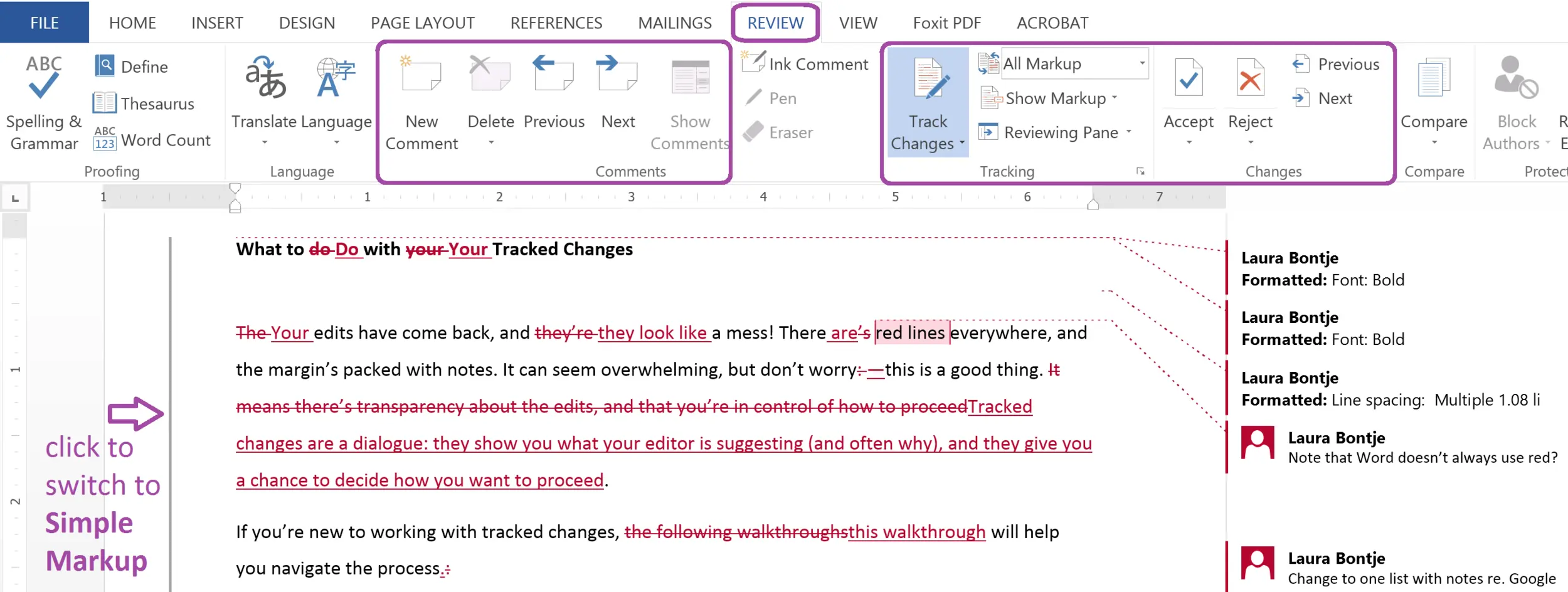
Microsoft Word’s Track Changes captures several types of edits. These edits are usually insertions, deletions, and comments. Insertions appear underlined. Deletions are shown struck through. Comments show aside the main text. Formats differ; users can choose balloons or inline notes based on preference.
Google Docs also has version control which allows users to track changes throughout a document’s history. The term ‘Track Changes’ isn’t used here, but it functions similar. Users can see edits as they happen and know who made which change. Its clarity aids collaboration with multiple authors.
Collaboration benefits from Track Changes. A study reveals that many prefer using trackable edits for an improved editing processes. This method ensures team accountability and improves output clarity. Overall, the track changes feature aids in streamlining editing, minimizing unnecessary back-and-forth.
Mastering Track Changes aids in project management, helping writers focus on quality. The tool fosters effective teamwork. Keeping this in mind let us explore more on why utilizing Track Changes is crucial in the following section.
Why Use Track Changes?
Track changes offers key advantages for people collaborating on documents. One main benefit is clarity given to modifications. Users can see who made changes easily. This promotes accountability among team members. Whether altering wording, structure, or formatting, track changes shows edits visually, allowing quick comparison between original and modified text.
This clarity boosts productivity. Multiple authors can add at same time without fear of permanent changes. Document revisions happen in real-time while a complete record of past changes is kept. This feature guarantees all are aligned, reducing confusion often caused by verbal suggestions and talks.
Furthermore, using track changes supports effective audit trails. All adjustments are tracked, giving history for document development. This becomes critical when multiple reviews occur or approvals from stakeholders are needed. As a result, teams can see how the document evolved, ensuring nothing gets missed during editing.
Also, track changes promotes collaboration and communication in document management. Team members can comment or suggest changes, leading to discussions about content. This cooperation not only boosts the document’s quality but also builds better relationships among team members.
In summary, using track changes is vital to manage documents efficiently in any collaborative setting. It makes the editing process smoother and helps create unified revisions, ensuring that each document reflects collective insights.
Now that we know why track changes matters, let’s explore how to turn track changes on and off in Microsoft Word.
How to Turn Track Changes On and Off in Microsoft Word
Turning on and off Track Changes in Microsoft Word helps with managing edits in documents. This feature tracks edits while promoting collaboration among users. Here’s a useful guide to activate and deactivate Track Changes:
Open your Word document where you want to enable or disable Track Changes.
Go to the ‘Review’ tab at the top of the window. This area contains all editing and reviewing tools.
Look for the ‘Track Changes’ button. It appears as a pen icon next to new lines of text.
Click on the ‘Track Changes’ button to turn it on. The button highlights, meaning changes will be recorded.
To turn off Track Changes, click the button again. The highlight disappears and edits won’t be tracked.
You can also use keyboard shortcuts. Press Ctrl + Shift + E to toggle Track Changes.
After activating Track Changes, all edits, including text insertions and deletions, will highlight in your document. Insertions get underlined, while deletions have strikethrough text. This makes review easier and provides clearer feedback.
You can customize how Track Changes are displayed. Click the small arrow in the ‘Tracking’ section of the Review tab. Adjust settings like balloons for comments and display markup in the document.
Knowing how to manage Track Changes in Word can improve collaboration inside the team as well as with external stakeholders. This clarity makes sure everyone is updated on the document’s changes, helping in managing written projects.
Now that you understand Track Changes in Word, let’s move to another key tool: managing Tracked Changes in Google Docs. This will boost your editing and collaborating using modern word processing platforms.
Managing Track Changes in Google Docs
Google Docs lacks a standard “Track Changes” feature found in Microsoft Word. Instead, it presents a similar option called “Suggesting” mode. This helps collaborators suggest edits that can be accepted or rejected, thus giving document owners control over changes.
To start using Suggesting mode, open your document in Google Docs. Click the pencil icon at the upper right corner. This lets you switch between Editing, Suggesting, and Viewing. Choose “Suggesting” to begin track changes. Edits appear in a different color, tagged with a speech bubble noting who suggested it and the time.
When suggestions are made, document owners review these changes. To approve a suggestion, click the checkmark. If not, the original text stays by clicking the X. This process boosts document transparency and supports good communication among team members.
Also, Google Docs lets users comment on suggestions. This is great for explaining intentions behind changes. Highlight text, hit the comment icon, and dive into detailed discussions about edits. This tool is very useful where feedback is key to enhancing document quality.
In conclusion, managing track changes in Google Docs may not mirror standard editing features of other software. Still, Suggesting mode aids in effective collaboration. With an environment for making and reviewing suggestions, Google Docs helps users enhance team work.
To sum up before we go to another section, recognizing the ability to accept or reject changes is vital for document finalization. Next, we will learn how to accept or reject changes in Microsoft Word to keep editing process organized.
How to Accept or Reject Changes in Word
After you have started using track changes feature in Microsoft Word, you need to review the changes. The next step involves deciding if you will accept or reject edits made by others. Here are simple steps to manage it well:
To see the tracked changes in the document, go to the ‘Review’ tab. You will find options like ‘Accept’ or ‘Reject’. You can accept or reject changes individually or all at once.
To accept changes one at a time, simply click on the specific change. Then press ‘Accept’ in the ‘Review’ tab. This will add the change to your document.
To reject changes individually, click on the change to deny. After that, select ‘Reject’ next to ‘Accept’. This will remove that change from your document.
If you want to accept or reject all changes at once, proceed to the ‘Review’ tab. Click the small arrow next to ‘Accept’ or ‘Reject’, and then choose ‘Accept All Changes’ or ‘Reject All Changes’.
You should know how these decisions can change your document’s final version. Communicating well with collaborators matters when finishing the edits. Set clear rules for how to handle changes from the start, to make editing easier.
Also, it helps to think about the context of each change. Check if the edits improve the message and tone of the document to keep clarity.
Once you’ve handled changes and finalized your document, you should deal with common issues that arise with track changes. Addressing those will improve your use of this important teamwork tool.
Common Issues with Track Changes and Solutions
Using track changes feature in word processing tools such as Microsoft Word or Google Docs helps collaboration. However, it can bring challenges. Here are frequent issues users face with track changes, plus steps to fix them.
A common issue is tracked changes not showing up well. Users may see their changes are missing, or comments seem out of order. Often, this happens due to wrong document settings. To fix this, check if track changes option is on and ensure document view is showing markup. Changing viewing settings may reveal changes again.
Another issue is comments cluttering the document, which complicates tracking vital changes. If many reviewers add comments, the document fills up with text quickly. Managing this involves using the comment resolution feature. This helps resolve or delete unneeded comments, keeping document neat during revisions.
Sometimes, users have trouble accepting or rejecting multiple changes at once. Doing this on big documents is tiring. To speed things up, try batch accept or reject options in the track changes menu. This helps manage several changes together, streamlining editing.
Users might face compatibility problems across different Word versions or while sharing documents. This can cause lost formatting or changes not tracked. To lessen issues, ensure all collaborators use the same software version and save copies in formats that maintain track changes, like DOCX.
By tackling these frequent issues with the right solutions, you can boost your efficiency with track changes. This makes teamwork and productivity better.
As you improve in dealing with these common problems, think about how to make your collaborative work more effective. Next, we will talk about tools like LoopIndex LLC that can add depth to managing document revisions and teamwork.
Leveraging Tools like LoopIndex LLC for Enhanced Collaboration
Individuals and teams often face challenges in document editing. Using advanced collaborative tools is a must for streamlining the process. LoopIndex LLC provides plugins that work with popular word processing software, improving the track changes feature. These tools aids in seamless collaboration, allowing users to revise and contribute without mix-ups.
With LoopIndex LLC, users can track changes. It also helps in managing them across different document versions. This function help in control issues, when multiple drafts can make editing messy. A centralized platform from LoopIndex keeps all members informed, reducing errors in revisions.
The advantages of enhanced collaboration with LoopIndex LLC go beyond editing. Users can see real-time updates and changes from others. This promote transparency and teamwork. Efficient management software can lead to productivity boosts, with some studies showing up to 20% better project timelines.
Integrating LoopIndex LLC can reshape team approaches to revisions. By leveraging such tools, users can better their track changes usage, turning a cumbersome task into a smooth effort that increases overall productivity.
Conclusion
This guide show the features of track changes in word processors, highlighting its role in editing and teamwork. We looked at how to activate track changes in tools like Microsoft Word and Google Docs. Mastering these options can boost your efficiency.
With this info, you ready to start. Use track changes on your next project, seeing how it will improve the process. By using track changes, you make teamwork easier and improve your writing as you follow the development of your text.
Harness track changes. You will see your output increase as you work well with others. With what you learned, you are on track to handling edits and feedback more effective.
About LoopIndex LLC
LoopIndex LLC specializes in enhancing content creation and editing through robust plugins for popular editors like TinyMCE, Froala, and CKEditor 4, streamlining the document editing process.
This matters because efficient document workflows promote better collaboration, version control, and accountability among teams managing complex documents.
Discover how you can elevate your document editing experience today! Visit LoopIndex.com.